- Purpose and Scope
This document provides guidelines and procedures for Quest employees to access and utilize the Quest Help Desk system for IT support requests.
This guide extends to all employees and authorized personnel requiring IT support through Quest's Help Desk Portal or email system.
The Help Desk system is designed to streamline IT support requests and provide efficient resolution of technical issues.
- Roles and Responsibilities
Requester
- Is responsible for submitting filled out tickets (impact, urgency, deadline, attachments), answer questions and validate fixes during “Complete Pending Confirmation” within the stated window.
- Is accountable for ensuring request accuracy, assessing business impact, and making acceptance or rejection decisions during validation.
- Provided case details and acceptance criteria when asked.
- Receives status updates, near‑breach/breach notices, and closure.
IT Triage
- Is responsible for ticket intake, classify, set/confirm priority, assign to IT User, and ensure status are correct.
- Is accountable for ticket queue hygiene and on-time first response, and triggers escalations for near‑breach or breach events.
- Consults with IT User on complexity, and with stakeholders for impact clarification.
- Keeps stakeholders informed of assignment status and flags early risks.
THIS SPACE LEFT BLANK
IT User
- Is responsible for investigation, implements workarounds or fixes, keeps requester informed, documents the resolution, and drives the ticket from Active to Complete Pending Confirmation to Resolved/Closed.
- Is accountable for meeting resolutions on assigned tickets and to capture a clear resolution note.
- Consult with IT Team as needed and capture their input in‑ticket.
- Notify triage/requester on risks, blockers, and status changes.
- Access Information and Requirements
To access the Help Desk Portal, the following are required:
Portal Access
- URL: https://help.questinc.com/
- Active Work or School Microsoft 365 account for Single Sign-On
Email Ticket Submission
- Ticket Email: itrequest@questinc.com
System Requirements
- A modern web browser (Chrome, Firefox, Safari, or Edge)
- Reliable internet connection
THIS SPACE LEFT BLANK
- Authentication Process
Microsoft Single Sign-On (Preferred Method):
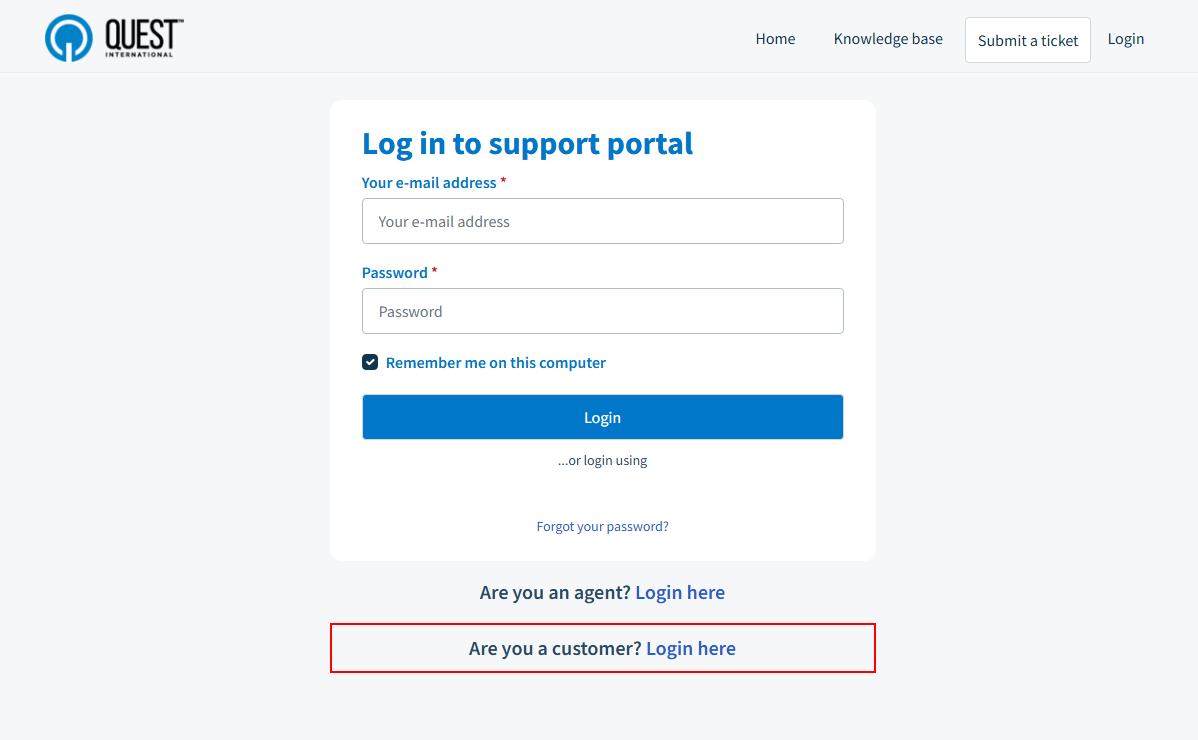
- Go to the Help Desk Portal and click “Login” (top‑right).
- Click “Are you a customer? Login here” if prompted.
- Choose “Login using Microsoft” (Single Sign‑On).
- If asked, approve the sign‑in with your Quest Microsoft 365 account.
- You will be returned to the portal, signed in.
THIS SPACE LEFT BLANK
- Ticket Submission Procedure
Portal-based ticket submission:
- Click "Submit a ticket" (top-right corner)
- Complete required form fields:
- Requester: Email address (auto-filled when logged in)
- Subject: Clear, specific title describing the issue
- Type: Select appropriate category (Integration Issue, Help/Advice, Access Request, Setting Change, etc.)
- Category: Choose related system (Quest Net, CRM, SAP, etc.)
- Business Area: Select department/business unit
- Priority: Low, Medium, High, or Urgent
- Description: Include detailed steps, error messages, business impact and deadlines
- Attach relevant screenshots or files
- Click Submit to create ticket
Email-based ticket submission:
- Send email to itrequest@questinc.com
- Email Subject becomes ticket title
- Email Body becomes ticket description
- Attachments automatically added to ticket
- Confirmation email with a ticket number will be sent
- Ticket Tracking and Management
Ticket viewing and tracking:
- Click "Tickets" tab to view all submitted requests
- Use filters to view Open, Pending, Resolved, or Closed tickets
- Click individual ticket to read updates or add comments
- Export ticket list functionality available
Ticket communication:
- Reply directly within ticket interface
- Add comments for internal tracking
- Receive email notifications for status updates
- Maintain professional communication standards
- SLA Definitions and Ticket Lifecycle
Status Definitions:
- Open: Ticket created and assigned/triaged. Owned by IT queue or assigned agent; use for queued or initial work before hands‑on activity begins.
- Pending: Awaiting requester’s information. Owned by requester, auto‑remind requester every 2 business days.
- Active: Work in progress by IT. Owned by assigned IT agent/group, update cadence follows priority targets until mitigation or completion.
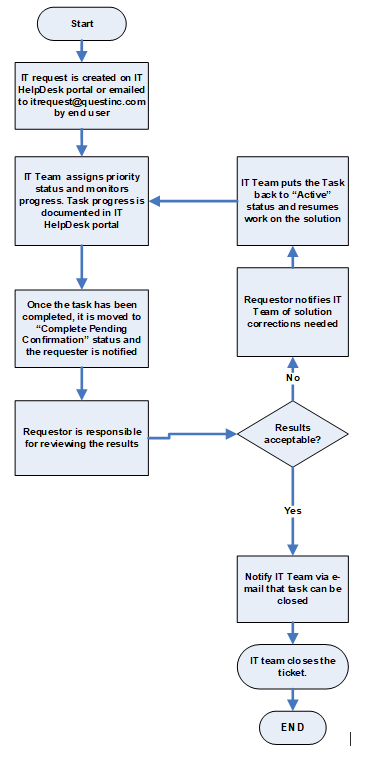
- Complete Pending Confirmation: Work completed and pending requester validation. Owned by requester for acceptance. If rejected with reasons, return to Active and resume work with corrections provided.
- Resolved: Service restored, or request fulfilled. CSAT survey sent, ticket held here only to allow auto‑close or manual confirmation, then transition to Closed per rule below
- Closed: Ticket is closed and archived.
SLA Definitions (Business Hours)
- Urgent (P1): First response 30 minutes, resolution target 8 hours
- High (P2): First response 2 hours, resolution target 16 hours
- Medium (P3): First response 4 hours, resolution target 24 hours
- Low (P4): First response 8 hours, resolution target 32 hours
- Knowledge Base Utilization
Self-service resources:
- Search the Knowledge Base before submitting tickets
- Browse articles for How-to guides, FAQs, and troubleshooting
- Access available 24/7 for immediate assistance
Knowledge Base categories:
- System-specific documentation
- Common troubleshooting procedures
- Step-by-step guides for standard processes
- Frequently asked questions and solutions

- Best Practices for Efficient Resolution
Ticket submission best practices:
- Use clear, specific subject lines
- Provide detailed steps to reproduce issues
- Include exact error messages and screenshots
- Select appropriate category and priority level
- Specify business impact and urgency requirements
Response and follow-up procedures:
- Monitor ticket status regularly
- Respond promptly to IT team requests for additional information
- Test provided solutions thoroughly
- Confirm resolution for ticket closure
- Escalation and Support Details
Internal support contact and escalation:
- Email: itrequest@questinc.com
- Help Desk Portal: https://help.questinc.com/
Priority escalation procedures:
- Urgent issues: Contact IT Manager or designee if no response within 2 hours
- High priority: Escalate to IT Manager or designee if no response within 4 hours
- Medium/Low priority: Follow standard response timeframes
After-hours support:
- Emergency contact procedures as defined by management
- Critical system outages require immediate escalation
- Compliance and Documentation
All IT support requests must be documented through the Help Desk system for:
- Audit trail maintenance
- Performance metrics tracking
- Knowledge base development
- Compliance with internal policies
Users are responsible for:
- Accurate information in ticket submissions
- Timely response to IT team requests
- Following established procedures
- Maintaining confidentiality of sensitive information
- Authorization
Access to Quest's Help Desk system requires acknowledgment of this work instructions and compliance with established procedures.
Access to the Help Desk platform is granted to end users who have completed Help Desk Instructions training and acknowledged these procedures
Flowchart
See below for the flowchart
Was this article helpful?
That’s Great!
Thank you for your feedback
Sorry! We couldn't be helpful
Thank you for your feedback
Feedback sent
We appreciate your effort and will try to fix the article